How to Use Queries
How to Use Queries
A Query allows you to filter and sort content in Content Manager so it can be displayed automatically on a webpage.
Queries are commonly used to display:
- Latest News sections
- Event listings
- Document collections
- Filtered page lists
Instead of manually updating a page every time new content is published, a Query will automatically update whenever new matching items are added.
Creating a Query
To begin, navigate to System → Queries from the left-hand sidebar in Content Manager.
Click the blue Add Query button in the top-right corner.
You will be prompted to enter some basic information:
Content Type
Choose the type of content the query should pull from (Pages, News, Documents, Events, etc.). The query will only return items from this content type.
Choose the type of content the query should pull from (Pages, News, Documents, Events, etc.). The query will only return items from this content type.
Structure
Select the structure associated with that content type.
Select the structure associated with that content type.
Query Title and Description
Give the query a clear name so it’s easy to identify later. You can also add a description to help explain what the query is used for.
Give the query a clear name so it’s easy to identify later. You can also add a description to help explain what the query is used for.
Once this information is entered, click Create and Edit to open the full query configuration.
Filtering and Organizing Results
Under the Filters tab, you can apply filters based on the available fields for the content type selected. For example, if your query is for pages, you might see filters such as:
- ID
- Updated At
- Image
- Title
- Privacy Level
Next, open the Grouping and Sorting tab to control how results appear.
Here you can group or sort content by fields such as:
- Published Date
- Updated Date
- Title
For example, a News query might be sorted by Published Date (Newest First).
Templates
The Templates tab allows you to control how the results of a query are displayed on a page. You can create a new template to define the layout and styling of the results, or reuse an existing template when inserting the query on a page.
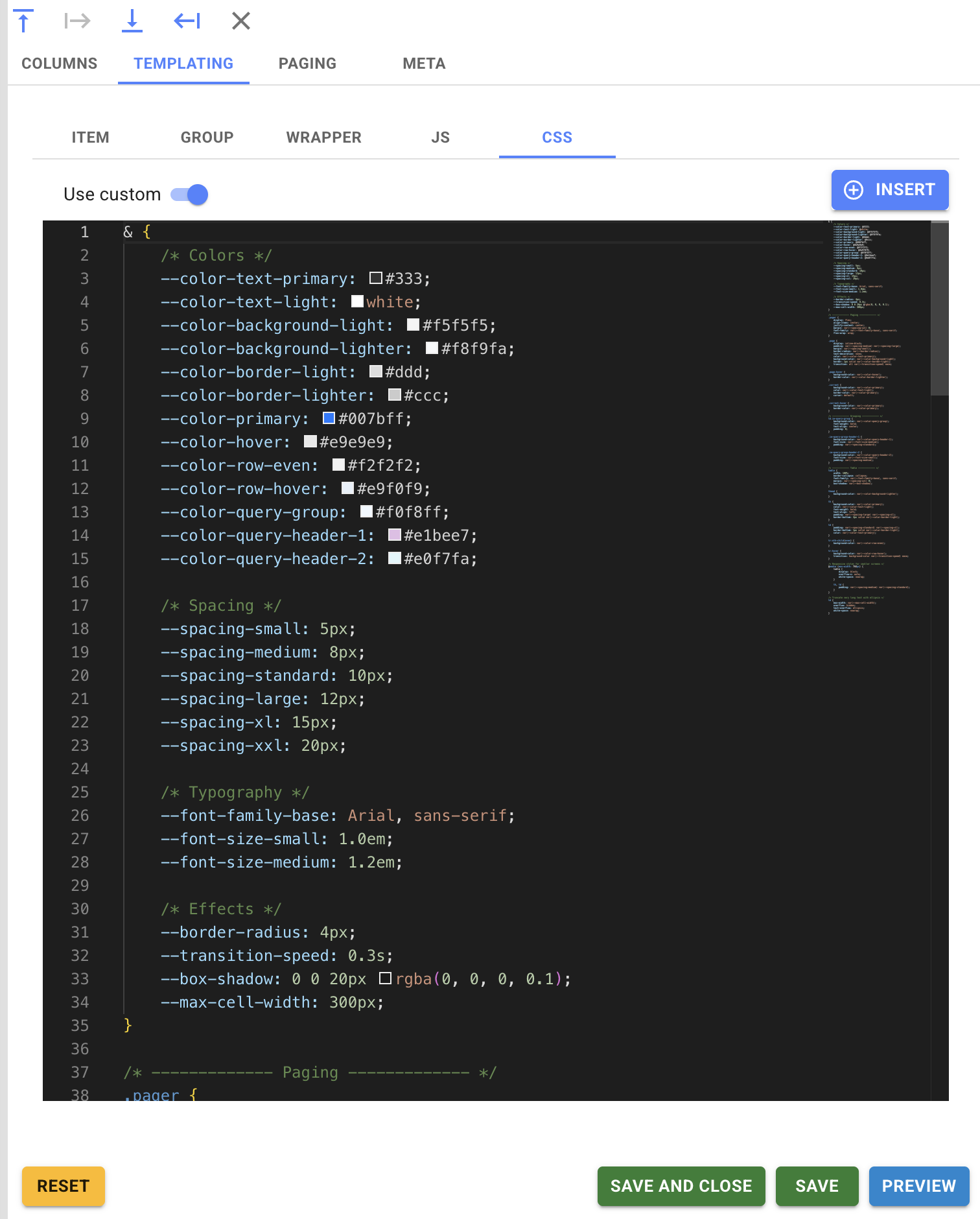
Displaying Queries on Pages
Currently, Queries can be used in templates, but they are most commonly inserted by site-level staff into the Lexical Rich Text Editor on a page. This allows the page to display content that matches the query’s filters and sorting.
In this step, you can choose a template to use, either one you created or an existing one.
Once a query is added and saved to a page, any new content that matches the query will appear automatically without needing to edit the page itself.
Example Use Case
A query named Latest News might be configured to:
- Pull content from News
- Sort by Published Date (Newest First)
When inserted into a page, the query will automatically display the most recent news using the selected template.
Related Articles
The Content Manager Playbook
This comprehensive guide combines all the strategic and technical workflows we've developed for the Content Manager. It is designed to be a "Master Playbook" for anyone responsible for maintaining a professional and user-friendly school website. 📘 ...Which Tool Should I Use in Content Manager?
This guide is made to help your staff make informed decisions on what tools to use in Content Manager. It helps staff quickly decide which module to use, ensuring that information is organized logically for parents and easily searchable on the site. ...Adding a New Transportation Area
Adding a New Transportation Area Setting up your Areas is the very first step in organizing your transportation network. Think of an Area as a broad label that helps parents identify which bus serves their neighbourhood at a glance. How to Create an ...How to Use Collapsible Boxes
Long pages filled with text can be overwhelming for parents, especially when they are searching for a quick answer on a mobile device. Collapsible Boxes are the perfect solution for organizing "heavy" content like FAQs, school policies, or supply ...How to Create News
Sharing news with your community is a great way to keep everyone engaged and up to date! Here is your guide to creating news items, rewritten with a welcoming and easy-to-follow flow. Spreading the Word: Adding News Got a big announcement or an ...